

Configure Bank Wire Transfers

1

Log in to Spartan

Log in to Spartan using an administrator account and open the admin area.
2

Open the Bank Wire settings

Go to Settings, then select the Bank Wire tab.
3

Enable and configure Bank Wire

Set Bank Wire Enabled to Yes, then configure the following fields:
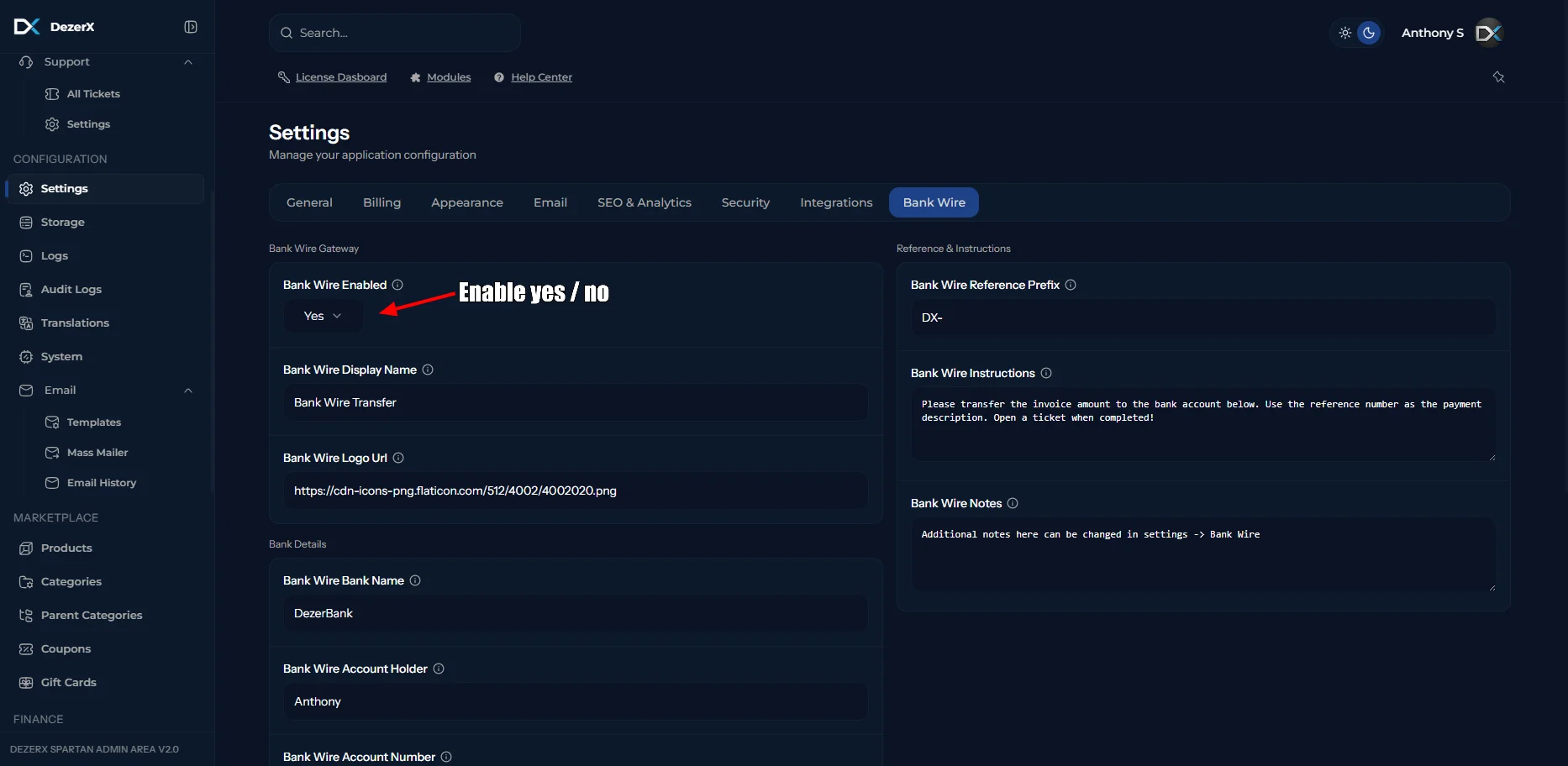
FieldDescription
Bank Wire Display NameThe payment method name shown to customers during checkout.
Bank Wire Logo URLThe URL of the icon displayed next to the payment method.
Bank Wire Bank NameThe name of the bank receiving the transfer.
Bank Wire Account HolderThe name of the person or business that owns the bank account.
Bank Wire Account NumberThe account number customers must use for the transfer.
Bank Wire IBANThe International Bank Account Number used for domestic or international transfers.
Bank Wire SWIFT/BICThe bank identifier required for some international transfers.
Bank Wire Routing NumberThe routing or clearing number used to identify the receiving bank.
Bank Wire Bank AddressThe physical address of the receiving bank.
Bank Wire Reference PrefixA prefix added to payment references so transfers can be matched to invoices.
Bank Wire InstructionsInstructions shown to customers when they select bank transfer.
Bank Wire NotesAdditional information displayed alongside the bank transfer details.
Spartan Bank Wire settings
Replace the example bank details with your actual account information before accepting bank transfer payments.